Config SharePoint Server 2007 WCM sites: dual + anon auth
In this article, learn how you can configure a SharePoint Server 2007 WCM site for dual authentication & to support anonymous access.
Content-centric sites that are managed via a Content Management System typically have very specific requirements. The owners of the content of a content-centric site usually spend most of their time behind the company firewall and sign in to their corporate Active Directory. Ideally these users need to have a single-sign-on (SSO) experience where they don’t have to remember a special username and password to simply sign in to a Content Management System to author and manage the content on the company Web site. The public-facing portion of the site needs to allow visitors to browse the site anonymously. However, there may be certain areas of the site that require the user to sign in. These may include premium content, registration, or an e-commerce solution. While the familiar username/password dialog is acceptable in a corporate setting, it is frowned upon on the public realm of the Internet. Therefore, many companies prefer to implement some type of forms authentication where users sign in using a username or email address and password to gain access to protected areas.
Web Content Management (WCM), one piece in the Enterprise Content Management (ECM) strategy included in Microsoft Office SharePoint Server (MOSS) 2007 adds the capability of hosting and managing content-centric sites to the SharePoint platform. MOSS 2007 is built on top of Windows SharePoint Services (WSS) v3 which is in turn built on top of ASP.NET 2.0. This means that WSS v3 (and MOSS 2007) have full access and utilize everything that ASP.NET 2.0 has to offer… including the pluggable authentication model. It is this pluggable authentication that I will leverage to provide multiple authentication options for a single Web site. In this article I want to demonstrate how to configure a Publishing Site (aka: WCM site) in MOSS 2007 for the previously described common scenario companies encounter with content-centric sites. The goal is to provide an experience that achieves three requirements:
- Allow content owners/authors to authenticate on the site using their corporate Active Directory credentials in order to manage the Web site’s content.
- Allow unauthenticated, anonymous users, to browse the unrestricted areas of the Web site.
- Require anonymous user to provide a friendly Web-based form to sign in in order to consume restricted content.
I’ll demonstrate how all three goals can be achieved using MOSS 2007 and WSS v3 in this article. First I’ll set up a database to store the information for users accessing the Web site from the Internet. Once that’s configured, I’ll create two Web applications and a Publishing Site; each Web application, or IIS Web site, will be configured for a specific type of authentication mechanism (Windows Authentication [AD] and Forms Authentication). Then I’ll configure both Web applications so they can access the users and roles that will be granted rights within the site (typically read or contribute rights to protected areas of the site). Once both sites are configured to communicate with the forms authentication-based user and role store, I’ll configure one Web application to allow users to sign-in and authenticate via a common Web-based form. The last step will be to configure the site for anonymous access so they can browse the site and consume the content. Finally, I’ll show you how to require a sign in for a specific area of the site.
This article is not written as a step-by-step instruction manual on how to configure your site for anonymous access with dual authentication mechanisms. It assumes some experience with WSS v3 and MOSS 2007. While the subject of this article deals with configuring a Publishing Site (aka: Web Content Management Site), everything translates to any type of WSS v3-based site including MOSS sites.
Setting Up ASP.NET 2.0 Forms Authentication User & Role Data Store
Before we can do anything, we first need to create a database that will store all the information, credentials, roles, and users for the forms based authentication site. Then we’ll add a single user to this database which we’ll use for testing later. Nothing in this step has anything to do with SharePoint as its just plain ASP.NET 2.0.
Create the ASP.NET 2.0 Database
Before we can do anything else, we need to create a database that will store the users and roles. Microsoft has provided a utility, aspnet_regsql.exe, that will create this database for you. It can be found here: %windir%\Microsoft.NET\Framework\v2.0.5027. Executing this file will trigger a wizard that will walk you through creating the ASP.NET 2.0 database. I’ve named my database AcAspNetDb and configured it for Windows Authentication, as shown in Figure 1 below.
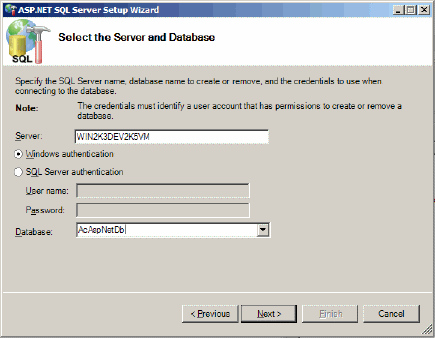
Figure 1 – aspnet_regsql.exe wizard
Configure Membership & Role Providers
Now that our database is configured, we need to add a single user. In my opinion, the best way to do this is to create a new Web site project in Visual Studio 2005. Why? Because not only does it have an easy way to access the ASP.NET 2.0 administration Web site that will let us add users and roles, but we’ll also ensure our database connection strings, membership, and role providers are correctly configured before we bring SharePoint into the equation. I’ll use these same connection string and providers in the SharePoint sites later… so we have a good foundation to copy from.
Open Visual Studio 2005 and select File - New - Web Site. In the New Web Site dialog, select the template ASP.NET Web Site, set the location to File System. I like to put all my Web sites in the [drive]:\Inetpub directory so I’ll put mine in the following directory: [drive]:\Inetpub\AC FBA Utility Site (FBA = Forms Based Authentication). The language is irrelevant so you can pick anything… we won’t write a single line of code.

Figure 2 – Visual Studio 2005 New Web Site dialog
Now, add a web.config file to the site. By default, you’ll see a <connectionStrings /> node within the <configuration> node. Here you want to specify a connection string to the database you just created in the previous step. For me, I’ll replace the <connectionstrings></connectionstrings> node with the following:
1<connectionStrings>
2  <add name="AcSqlConnString"
3            connectionString="server=[YourSqlServerName];database=AcAspNetDB;
4            Integrated Security=SSPI;"
5            providerName="System.Data.SqlClient"
6  />
7</connectionStrings>
With the connection string set up, now we need to specify the membership and role providers. In this article I’m using the ASP.NET SQL membership and role providers, so I need to add the following to the web.config file, within the <system.web> node:
 1<!-- membership provider -->
 2<membership defaultProvider="AcAspNetSqlMembershipProvider">
 3    <providers>
 4        <add name="AcAspNetSqlMembershipProvider"
 5            type="System.Web.Security.SqlMembershipProvider, System.Web,
 6                  Version=2.0.0.0, Culture=neutral, PublicKeyToken=b03f5f7f11d50a3a"
 7            connectionStringName="AcSqlConnString"
 8            enablePasswordRetrieval="false"
 9            enablePasswordReset="true"
10            requiresQuestionAndAnswer="false"
11            applicationName="/"
12            requiresUniqueEmail="false"
13            passwordFormat="Hashed"
14            maxInvalidPasswordAttempts="5"
15            minRequiredPasswordLength="1"
16            minRequiredNonalphanumericCharacters="0"
17            passwordAttemptWindow="10"
18            passwordStrengthRegularExpression=""
19        />
20    </providers>
21</membership>
22
23<!-- role provider -->
24<roleManager enabled="true" defaultProvider="AcAspNetSqlRoleProvider">
25    <providers>
26        <add name="AcAspNetSqlRoleProvider"
27            type="System.Web.Security.SqlRoleProvider, System.Web,
28                  Version=2.0.0.0, Culture=neutral, PublicKeyToken=b03f5f7f11d50a3a"
29            connectionStringName="AcSqlConnString"
30            applicationName="/"
31        />
32    </providers>
33</roleManager>
There are a few things you should take note of from the above code (marked in bold). First, note the name and connectionString attribute for the providers. When you install the .NET Framework 2.0, default connection strings and providers are specified in the machine.config file (located in the %windir%\Microsoft.NET\Framework\v2.0.5027\CONFIG). You want to make sure you use unique names here and not the names that Microsoft has included as the default names in the machine.config file. If you elect to reuse their names, you’ll need to explicitly remove each one by name (via the <remove /> node) or clear all predefined connection strings and providers (via the <clear /> node). To make it easy, I specified unique names, as indicated in bold.
With everything configured, launch the ASP.NET 2.0 Web administration site from within Visual Studio 2005: Website - ASP.NET Configuration. When the site loads, the first order of business is to switch it from Integrated Authentication to Forms Authentication. To do this, select the Security link and then select the Select Authentication Type link in the Users container. If it isn’t selected already, make sure From The Internet (aka: Forms Authentication) is selected and click Done.
Create A User
Next, we need to add a user that we’ll later use for testing. Select Security again and then select Create User. I’m going to create a new user with the User Name of andrewconnell and Password of password. Note I don’t have to enter a strong password because of some of the settings I changed in the membership provider in the code above. The E-mail address isn’t important, so I’ll just enter andrewconnell@foo.com and click Create User.
Finally, let’s make sure the markup in our web.config file is correct for our membership and role provider. To do this, select the Provider tab and then select Select a Different Provider For Each Feature (Advanced). You should see the membership and role provider that we specified in our web.config. Selecting the Test link for either should confirm they are successfully talking to the database.
At this point, we now have our ASP.NET 2.0 user and role database store configured. More importantly we should have a good template web.config containing the connection string, membership provider and role provider settings that we can copy from when modifying the web.config files for our SharePoint sites. Now we need some Web applications to configure!
Creating Two Web Applications, One For Each Authentication Mechanism
We need some sites to configure for authentication right? I mean, that’s the point of the article right? Duh!
Creating the http://extranet IIS Web site
First step is to create a new Web application just like you would any other time. From SharePoint’s Central Administration Web site, select the Application Management tab, then Create or Extend Web Application and then Create a New Web Application. I’m guessing if you’re reading this article, you know how to create a new Web application from here… so I’ll spare the details, but I want to point out is that I specified the following:
- Set the Description as SharePoint – Extranet 80
- Set the Port to 80
- Set the Host Header to extranet
- Picked NTLM as the Authentication Provider
- Specified Anonymous Access to No
After creating the Web application, I then created a new site collection in the Web application naming the site Acme and picking the Publishing Portal site template.
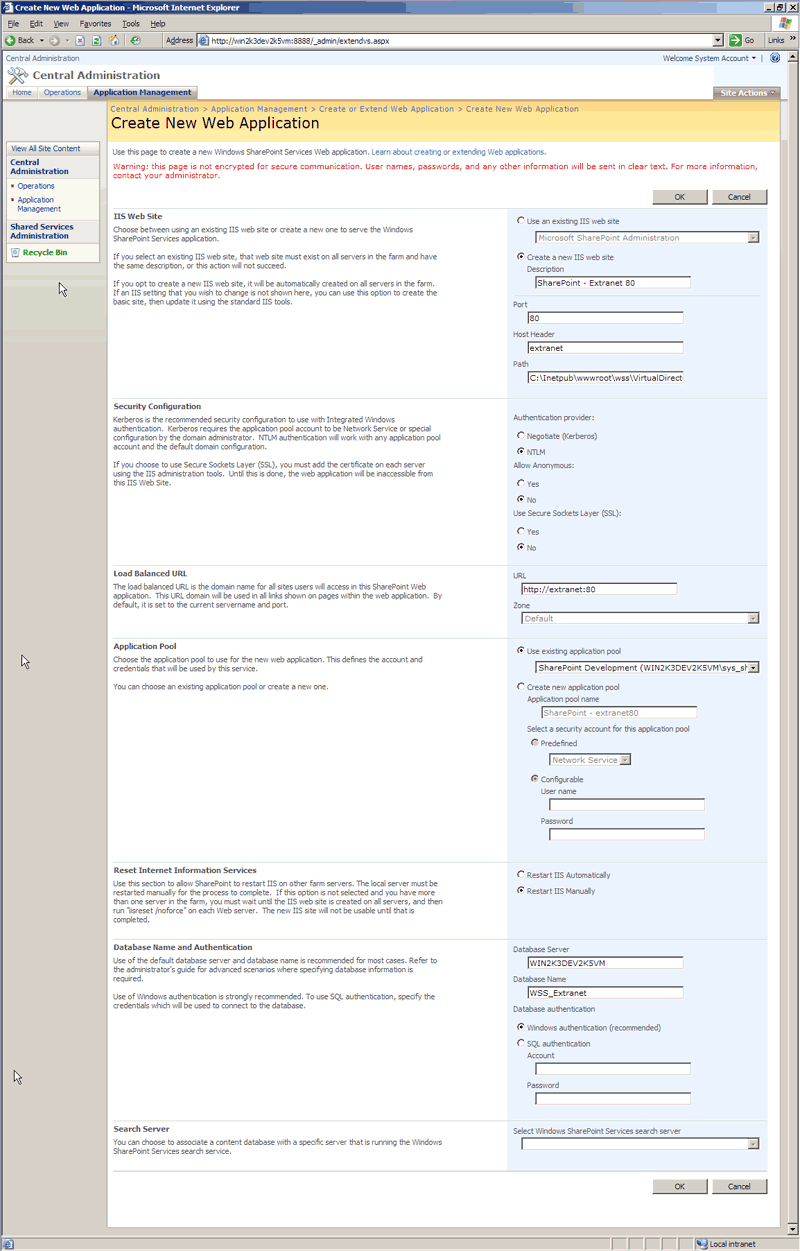
Figure 3 - Creating Web Application
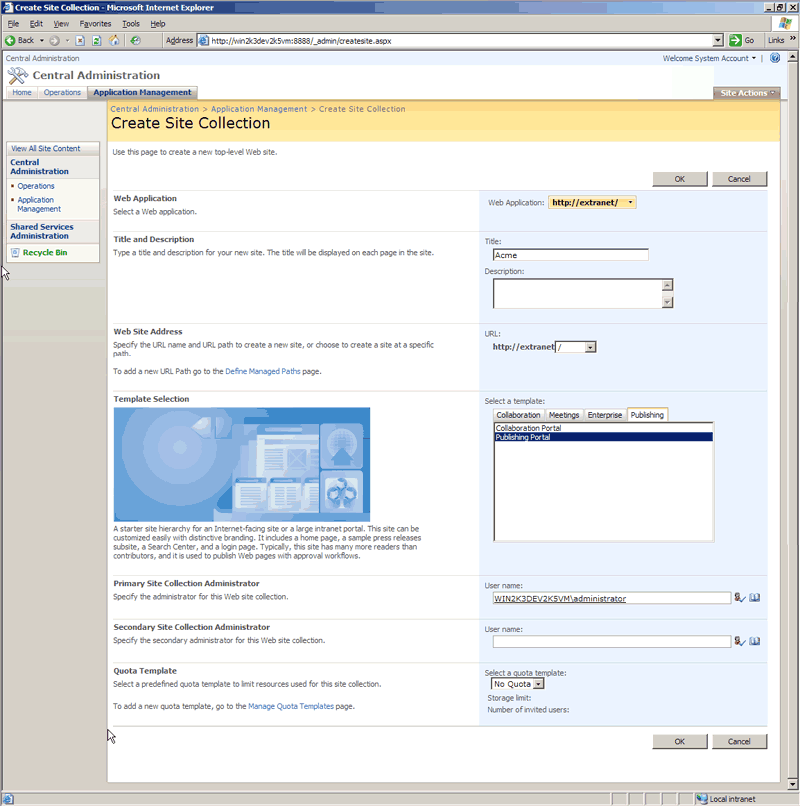
Figure 4 - Creating Site Collection
At this point we now have a site, configured for Windows Authentication, named ACME at http://extranet. This is the site our content owners will use to authenticate using their Active Directory corporate accounts in order to add, edit, and manage the content on our Publishing site. Make sure everything is working by browsing to the http://extranet Acme site. You should see the Welcome control and the Site Actions menu in the upper right-hand corner of the page. Assuming everything is working, we have now satisfied the first goal listed in the introduction above!
Creating the http://internet IIS Web site
Now we need to extend our Web application to another IIS Web site. This is the site our anonymous, or Internet users, will use to access the site. This site will need to be available to anonymous users as well as provide a mechanism for them to authenticate against, via Forms Authentication, in order to access restricted areas of the site (such as a member’s only section). To extend the Acme Web application to another IIS Web site, from SharePoint’s Central Administration, select the Application Management tab, then Create or Extend Web Application and then Extend an Existing Web Application. Again, I’ll spare you from the details and highlight only a few important points on this page:
- Make sure you select the Web application you want to extend… in our case we want SharePoint – Extranet 80. Use the Web Application selector at the top of the page to pick the correct application.
- Set the Description as SharePoint – Internet 80
- Set the Port to 80
- Set the Host Header to internet
- Picked NTLM as the Authentication Provider
- Specified Anonymous Access to No
- Set the Load Balanced URL Zone to Internet
We’ll enable anonymous access later.
Now we have a site that we can configure for our Internet users to access anonymously and also sign in via Forms Authentication. However, before we do that, there are a few configuration tasks we have to do.
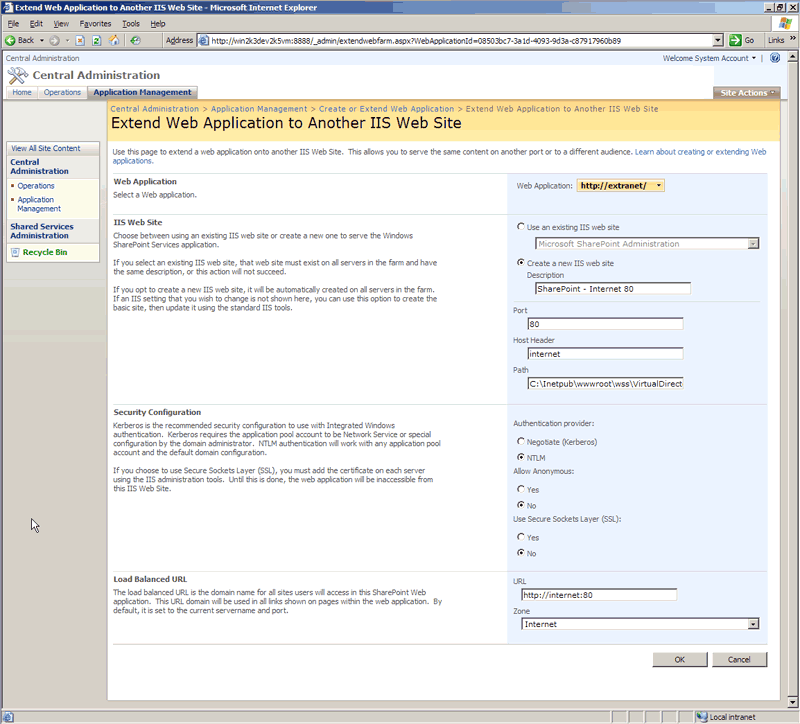
Figure 5 - Extending a Web Application
Configure The Web Applications To Communicate With The ASP.NET 2.0 Forms Authentication Data Store
Once you have a Web application created that will host a site, you will need to change its authentication provider to not use Windows Authentication but instead use Forms Authentication as well as configure the site so it can communicate with our user and role data store… the AcAspNetDb we created earlier. To do this, we’ll use the connection string, membership provider, and role provider we created and already tested in our utility Web site’s web.config file.
Configure http://extranet & http://internet
First, we’ll modify the two IIS Web sites (http://extranet and http://internet) web.config files to include the connection string, membership provider, and role provider information so they can both communicate with our user and role store. It’s obvious why the http://internet site would need these changes, but why make them to the http://extranet site when we’re going to use it for Forms authentication? If we didn’t, it would be somewhat difficult and inconvenient (but not impossible) when we needed to grant any special permissions in the Acme Web application to one of the users or roles in our data store. This way, one of our content owners can authenticate using his/her Active Directory credentials and still grant a user who will authenticate via Forms Authentication access within the site.
Open the web.config file for the http://extranet Web site, found in the following directory (if you let SharePoint specify the Web site root directory… otherwise, retrieve it from your specified path): c:\Inetpub\wwwroot\wss\VirtualDirectories\extranet80. Add the <connectionstrings> node, listed above, just after the closing </SharePoint> tag and opening <system.web> tag. Then add the membership and role provider markup, listed above, just after the opening <system.web> tag and save your changes. Do the same thing for the web.config for the http://internet Web site, found here: c:\Inetpub\wwwroot\wss\VirtualDirectories\internet80.
Configure SharePoint Central Administration
Now both Web applications are configured to communicate with the data store. There’s one last step we have to do… we need to add the same information to the SharePoint’s Central Administration Web site’s web.config file. Why? We need to make sure the Central Administration Web site can communicate with the data store in case we want to do any security management of the users and roles in the data store such as configuring policies for the Web application. Repeat the steps above for the Central Administration’s web.config which should be found here: c:\Inetpub\wwwroot\wss\VirtualDirectories\[#####]. You need to make one small change… change the defaultProvider attribute on the <roleManager> node to AspNetWindowsTokenRoleProvider. This is necessary because Central Administration still uses Windows Authentication for the role provider. The <roleManager> node for the Central Administration’s web.config should look like this:
 1<!-- role provider -->
 2<roleManager enabled="true" defaultProvider="AspNetWindowsTokenRoleProvider">
 3    <providers>
 4        <add name="AcAspNetSqlRoleProvider"
 5            type="System.Web.Security.SqlRoleProvider, System.Web,
 6                  Version=2.0.0.0, Culture=neutral, PublicKeyToken=b03f5f7f11d50a3a"
 7            connectionStringName="AcSqlConnString"
 8            applicationName="/"
 9        />
10    </providers>
11</roleManager>
Now we’re finally ready to configure the http://internet site for Forms Authentication!
Enabling Forms Authentication On One Web Application
Flipping the switch to Forms Authentication is very simple… it’s just all the prep work that’s the complicated part. Browse to SharePoint’s Central Administration Web site, select the Application Management tab, and then select Authentication Providers. First, ensure you are working with the correct Web application by checking the selector in the upper right-hand corner of the Authentication Providers page (as shown in Figure 6). Once you’re on the correct Web application, select the Internet zone link (as shown in Figure 6).
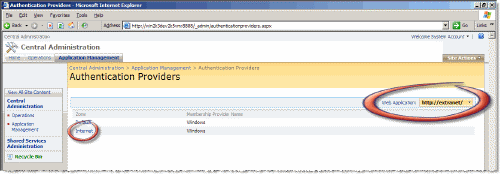
Figure 6 – Authentication Providers page
Note that even though we’ve selected the http://extranet Web application, we are really modifying the http://internet IIS Web site because that’s the one mapped to the Internet zone.
On the Edit Authentication page, we are going to change the Internet zone for the http://extranet Web application to the following settings:
- Authentication Type: Forms
- Enable Anonymous Access: checked
- Membership Provider Name: AcAspNetSqlMembershipProvider
- Role Manager Name: AcAspNetSqlRoleProvider
Notice that the names of the Membership Provider Name and Role Manager Name are the names of the providers we entered in the web.config’s. Now you see why we had some pre-configuration work to do before we actually made the switch. Refer to Figure 7 to see all settings I selected on the Edit Authentication page.
We now have two different ways for users to get to our Acme Web application:
- Via
http://extranet, authenticating using Windows Authentication (using their Active Directory credentials) - Via
http://internet, anonymously or authenticating using Forms Authentication
Ah.. but we’re not quite finished. Even though the http://internet Web site is now configured to allow anonymous users, the Acme Web application has not been set to grant permission for anonymous users to browse the site. You can prove this by trying to browse to http://internet. You’ll immediately get redirected to the default SharePoint Forms Authentication Sign In page, as shown in Figure 8.
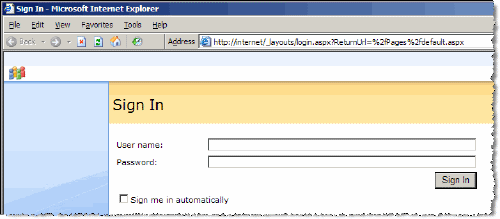
Figure 8 – SharePoint's default Forms Authentication Sign In Page
Let’s prove that the Forms Authentication is actually working with our data store. First we need to add our user to the site. To do this, browse to the http://extranet Web site, select Site Actions, then Site Settings, then People And Groups. Select the New button to add a user to the site. On the Add Users: Acme page, enter the username of the user we created previously: andrewconnell. Then click the Check Names icon (little icon with a blue check just below the Users/Groups input box… or press CTRL+K). In the Give Permission section, select Add Users To A SharePoint Group and select Acme Visitors [Read] and finally click OK. We’ve now granted our user access to the site.
To test, open a new browser window and browse to http://internet. You should immediately get sent to the SharePoint Sign In page. Enter the account’s credentials (andrewconnell/password) and click Sign In. You’ll then get signed in and redirected back to the homepage of the site. You can see you’re logged in because you can now see the Welcome control in the upper right-hand corner of the site. Notice how you can’t see the Site Actions menu? That’s because we only have the rights assigned to Visitors, which means we can’t do anything to the site but browse it.
Last step… let’s open the site up for anonymous users…
Enabling Anonymous Access
In order for anonymous users to have access to the Acme Web application and browse the site, we need to turn anonymous access on. In our case though, we only want to turn anonymous access on for the external (or http://internet) site. Before we do this, we should create a new account in our ASP.NET 2.0 database that we can use as an administrative account to make changes to our external site. First, create a new account using the same process in the Setting Up ASP.NET 2.0 Forms Authentication User & Role Data Store: Create A User section above. I’m going to create this account with the following credentials:
- Username: FbaAdmninistrator
- Password: password
Next, we need to grant this user ownership-level rights to our http://internet site. WSS v3 introduces a new capability where we can specify a user to have full control over a site via Web Application policies. These policies trump any permission setting within the site itself. We’ll use this to set a policy to grant the FbaAdministrator full control over our http://internet site. Browse to Central Administration, select the Application Management tab, then Policy for Web application under the Application Security section. Make sure you’ve selected the correct Web Application from the selector in the upper-right corner of the page (in our case, we want to select http://extranet). Next, select Add Users from the toolbar. On the Add Users page, select the Internet zone (because this is the zone we specified for our http://internet Web Application) and click Next. Finally, enter the user FbaAdministrator in the Choose Users step, select Full Control in the Choose Permissions step, and click Finish. Now you can sign in to the http://internet site and have full control over the site, just like the site owners have.
Now we can set up anonymous access for our http://internet site. To do this, browse to the http://internet Web site, sign in using the FbaAdministrato account we just created and configured, select Site Actions, then Site Settings, then Modify All Site Settings. On the Site Settings page, select Advanced Permissions. On the Permissions: Acme page, select Settings, and then select Anonymous Access (see Figure 9). On the Change Anonymous Access Settings: Acme page, select Entire Web Site and click Ok.
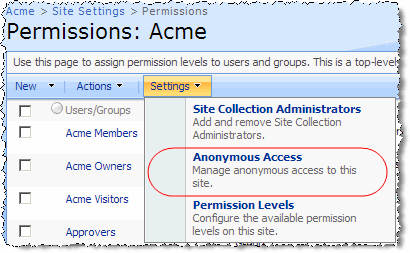
Figure 9 – Anonymous Access menu option on the Permissions Settings menu
To test, open a new browser window and browse to http://internet. You should go straight to the Web site as an anonymous user! You can tell you aren’t signed in because there’s a Sign In link in the upper right-hand corner of the site where the Welcome control usually is. We have now satisfied the second goal listed in the introduction above!
Configuring A Section Of the Site For Authenticated Users Only
Our last goal was to configure a section of the site so that users must be authenticated to have access to that section’s, or site’s, content. To do this, we’ll have to go back into our site as through the http://extranet. Because the site is now set up for anonymous access, you won’t automatically be signed in, so you’ll have to click the Sign In link in the upper right-hand corner. Because we created the site using the Publishing Portal template, there’s a subsite named Press Releases in our site collection.
Let’s make it so this site requires the user to sign in. Select Site Actions and then Manage Content and Structure. On the Site Content and Structure page, select Press Releases from the left-hand navigation tree and then select Advanced Permissions (see Figure 10).
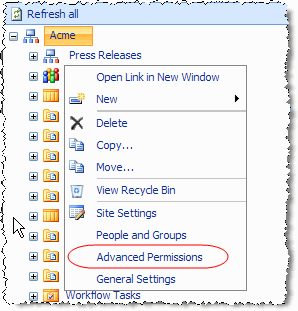
Figure 10 – Press Releases Advanced Permissions
Next, we’ll break the permission inheritance with the parent site and then remove anonymous access to the Press Releases site. First, select Actions and then Edit Permissions. You’ll be prompted to accept your changes… select OK. Next, Select Settings, then Anonymous Access, then on the Change Anonymous Access Settings page, select Nothing and click OK.
Now let’s test it… open a new browser window and navigate to http://internet. Notice how the Press Releases section isn’t on the horizontal navigation (see Figure 11)? Now sign in using the Sign In link in the upper right-hand corner and watch how the Press Releases section now appears since we’re authenticated (see Figure 12)! We have now satisfied the third goal listed in the introduction above!

Figure 11 – Unauthenticated User With Press Releases Site Hidden

Figure 12 – Authenticated User With Press Releases Site Visible
Conclusion
In this article I have demonstrated how you can create a Publishing Site in MOSS 2007 and configure it for two types of authentication and at the same time allow anonymous users to browse the site. So where would you go from here? Some possible next steps would include creating a self-registration system for users to create their own accounts and have these accounts automatically registered on the site under a specific role so no additional management action is required by the site owners.